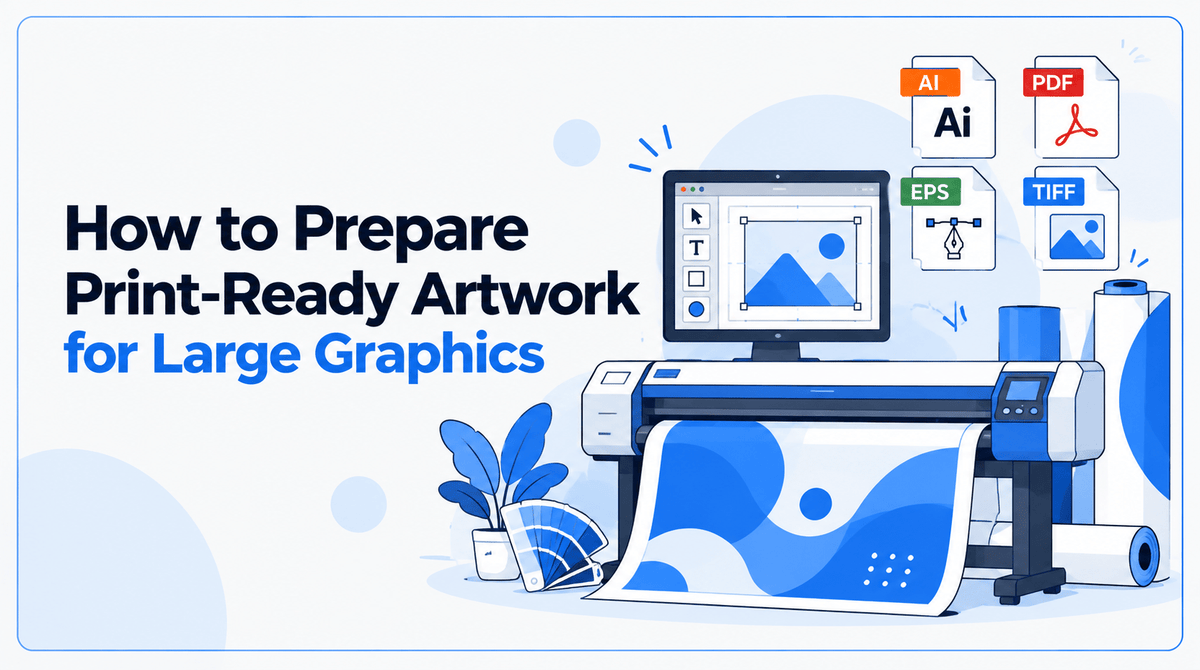
How to Prepare Print-Ready Artwork for Large Graphics
Preparing artwork for large-format printing takes more than making a design look sharp on a computer screen. The file needs to match the finished product, contain enough image detail for its intended size, and account for how the graphic will be trimmed, mounted, or assembled.
A logo that looks crisp on a laptop can lose clarity when enlarged. Text placed too close to an edge can be trimmed or hidden by finishing. A color that looks exact on a monitor may appear different on the printed material.
Before submitting artwork for a large sign, banner, display, or other graphic, work through the following checks. The exact requirements depend on the product, so confirm any specifications that are not provided in your order instructions.
1. Start With the Exact Product and Finished Dimensions
Before creating the final file, confirm what you are printing and how the finished graphic will be used.
A banner, rigid sign, window graphic, and multi-panel display may have different file and finishing requirements. Do not assume that a template for one product will work for another.
Confirm the following before setting up your document:
- The exact finished width and height
- The product or material being printed
- Whether the graphic will be trimmed, mounted, hemmed, or assembled from multiple panels
- Any template or artwork specifications supplied by the print provider
- The required bleed and safe margins, where applicable
For displays that use hardware, work from the manufacturer's specifications or the print provider's template. The visible graphic area may differ from the overall hardware dimensions.
Getting these details right at the beginning is easier than rebuilding artwork after submission.
2. Choose the Right File Type
The best file format depends on what the artwork contains.
Vector artwork for logos and text
Vector artwork is generally the preferred choice for logos, wordmarks, icons, and graphics built from clean shapes and lines. Vector elements can be scaled without the pixelation associated with enlarging a low-resolution image.
Common vector-capable formats include AI, EPS, and PDF files containing vector artwork. A PDF is not automatically vector-based, however; a PDF can also contain raster images.
If you have a logo in its original vector format, use that version rather than extracting a small logo from a website or screenshot.
Raster artwork for photographs and detailed images
Raster files contain pixels. Formats such as JPG and PNG are common for photographs and other pixel-based artwork.
These files can work well for large-format printing when they contain sufficient image detail for the intended output size. A small image does not become higher quality simply because it is placed into a larger document.
Use the original photograph or highest-quality source available. Avoid screenshots and compressed images taken from websites or social media when a better source file exists.
If you are unsure which format to supply, ask the print provider before converting or flattening the artwork.
3. Check Image Quality at the Final Size
Image quality needs to be evaluated at the dimensions of the finished print.
An image may look sharp when viewed small on a screen but become visibly soft or pixelated when enlarged. This is especially important when photographs, detailed illustrations, and raster logos occupy a large part of the design.
Resolution is commonly expressed in pixels per inch (PPI) for digital image detail and dots per inch (DPI) for printing output. People often use the terms interchangeably, but they describe different parts of the process.
There is no single resolution requirement that suits every large-format product. The appropriate image resolution depends on the finished size, viewing distance, source image, and production method.
Before submitting your file:
- Use the original image rather than a small preview or screenshot.
- Check that important photographs remain sufficiently detailed at the intended print size.
- Avoid enlarging a low-resolution logo when a vector original is available.
- Ask the print provider to assess questionable images before final production.
JYS's artwork policy notes that increasing the physical dimensions of a low-resolution image does not create additional image detail. If a quality concern is identified, resolve it before approving production rather than assuming it will disappear in print.
4. Set Up Bleed, Safe Margins, and Panel Layout
Document setup is not identical for every product. The requirements depend on the way the finished graphic will be cut, mounted, or assembled.
Bleed
Bleed is artwork that extends beyond the intended trim edge. It allows the graphic to be trimmed without leaving an unintended unprinted border.
Whether bleed is needed, and how much to include, depends on the product and finishing process. Follow the specifications provided for the job rather than applying one measurement to every order.
Safe margins
Safe margins keep important content away from edges where it could be trimmed, covered, or obscured.
Keep critical text, logos, and other essential elements within the specified safe area. A background image may extend to an edge while the headline or logo needs to sit farther inside.
Panels, seams, and hardware
Some large displays are produced or assembled in multiple sections. Others use frames, hems, mounting hardware, or other finishing features that affect the usable artwork area.
For these products, confirm the template and any seam or hardware allowances before finalizing the design. Avoid placing important text, faces, or logos where a seam or attachment point could interrupt them.
The rule is simple: prepare the artwork for the actual finished product, not just the dimensions of a blank rectangle.
5. Prepare Fonts, Linked Assets, and Color Information
A file can contain the correct design but still create production problems if fonts or linked images are missing or the color expectations are unclear.
Fonts and linked files
If your design uses linked images, make sure the required assets are included or properly embedded according to the file format and the print provider's instructions.
Fonts also need to be handled correctly. Depending on the accepted format, text may need to be embedded or converted to outlines. Outlining text can help preserve its appearance, but it also makes the text less straightforward to edit later. Keep an editable source file for your records.
Follow the provider's file requirements rather than assuming that every application exports files the same way.
Color
Screens display color using light, while printing uses inks or other color-producing systems. As a result, a color displayed on a phone or monitor may not match the printed result exactly.
If a brand color is critical, communicate that requirement before production. Supply appropriate color references and ask what matching options are available for the selected material and printing method.
JYS's Proof, Artwork & Color Policy explains that digital proofs are primarily intended for layout and content approval and are not exact color proofs. Any special color-matching requirements should be discussed before production and confirmed in writing.
6. Review the Proof Before Approving Production
A proof is an opportunity to catch mistakes before the job moves into production. It should be reviewed carefully, not treated as a formality.
Check the complete design, including:
- Spelling, grammar, names, and dates
- Phone numbers, website addresses, and QR codes
- Logo versions and image placement
- Colors, layout, orientation, and content positioning
- Final product dimensions and quantities shown
- Any important details near trim edges, seams, or hardware areas
For QR codes, test the code with a phone camera to confirm that it opens the intended destination. For brand-critical colors, ask about the available color-checking options rather than relying on how the proof looks on your monitor.
JYS's proofing policy makes the customer responsible for reviewing the visible details on the proof. Production proceeds after the required approvals and project information have been received.
If several people need to approve the artwork, coordinate their feedback before submitting final approval. Changes requested after approval may require additional work, charges, or a new production run.
7. What If Your Artwork Is Not Print-Ready?
Not every project starts with a finished production file. You might have a logo in the wrong format, a photograph that needs assessment, or a design that has not been prepared for the final dimensions.
Start by identifying what you have and what is missing. Gather the original files, confirm the intended product and finished size, and explain any concerns when contacting your print provider.
JYS may be able to help with artwork preparation, but the work required depends on the file and the project. Its published policy notes that services such as vectorization, logo recreation, extensive formatting, background removal, and significant design adjustments may involve additional fees.
Ask about file suitability and any artwork-preparation costs before proceeding. It is better to establish what needs to be corrected early than to discover that a file requires substantial work after the order is underway.
Prepare Your Artwork Before You Order
Good large-format printing starts with a file prepared for the actual product. Confirm the finished dimensions, use appropriate source artwork, follow the required bleed and safe margins, and review the proof carefully before approving production.
If you are unsure whether your file is ready, contact JYS Sign & Print Co. with the intended product, dimensions, and available artwork. The team can clarify the requirements for the specific job and explain what options are available if the file needs additional preparation.
Explore JYS Sign & Print Co. for custom signs, banners, displays, and other print projects, and confirm the artwork specifications before submitting your final files.